Running a workflow on a schedule
Timed runs live in the Scheduled view. A failure shows up here before it shows up anywhere else.
Most workflows start from a trigger — a message, an order. Some should start from the clock instead: a nightly audit, a Monday digest, month-end collections. Those live in Scheduled.
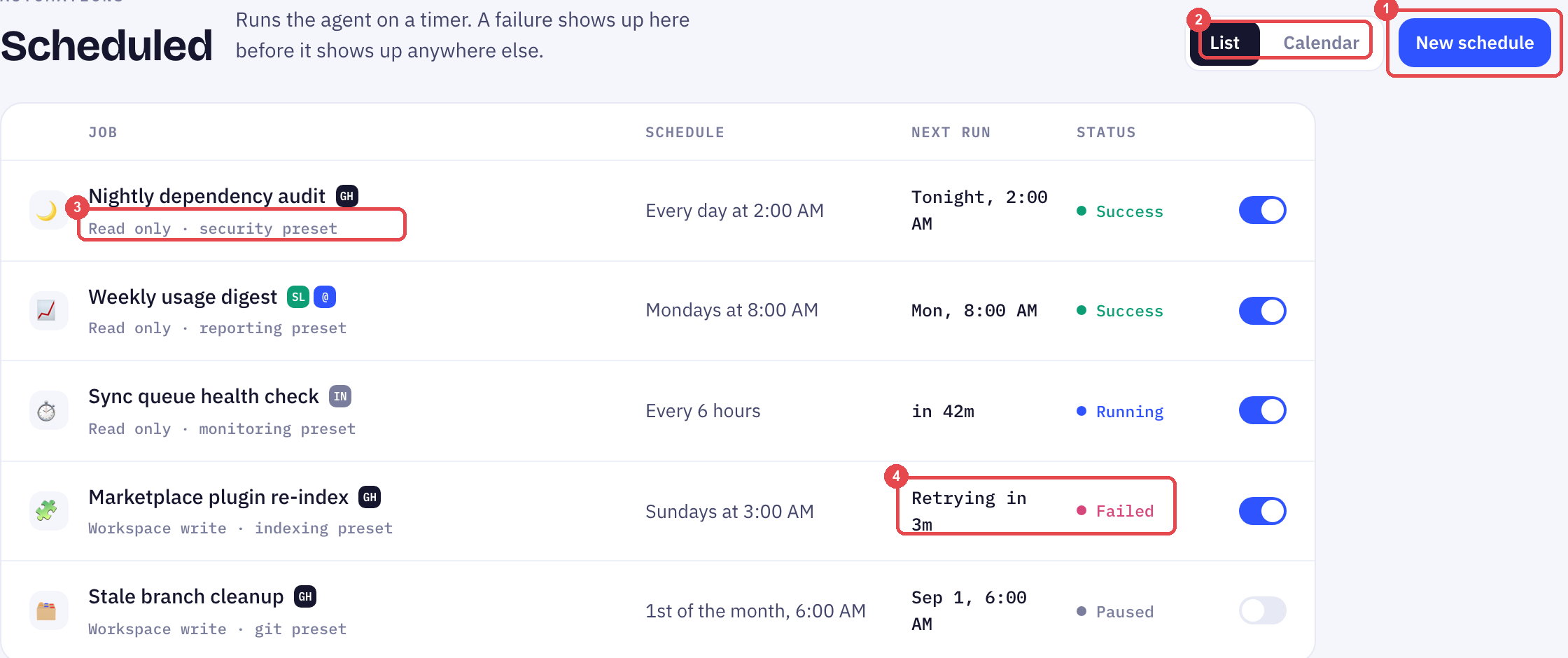
Creating a schedule
- Click New schedule
- Pick the workflow, or describe the job in plain words
- Set the timetable — every day at 2:00 AM, Mondays at 8:00 AM, the 1st of the month
- Choose a permission preset (below)
The job appears in the table with its next run already computed.
Reading the table
| Column | What it tells you |
|---|---|
| Job | The name, the app it touches, and its permission preset |
| Schedule | The timetable in plain words |
| Next run | When it fires next — "Tonight, 2:00 AM", "in 42m" |
| Status | Where the last run ended |
Four statuses. Success and Running need nothing from you. Paused means someone stopped it deliberately. Failed is the one to read.
When a job fails
A failed job retries on its own, and the table says when — "Retrying in 3m". You only need to act if it fails again after the retry.
A scheduled job that fails quietly is worse than one that never ran, because you assume the work was done. Check this view before you check anything downstream of it.
Permission presets
Every job runs under a preset that bounds what it may touch:
- Read only — can look, cannot change. Right for audits, digests and health checks.
- Workspace write — can change files inside the workspace. Right for re-indexing, clean-ups, anything that produces output.
Start every new job on Read only. Promote it to Workspace write once you have read a week of its output and trust it.
How to set up auto follow-up — follow-ups are delays after a message, not timed jobs; use Scheduled when the trigger is the calendar.
Frequently Asked Questions
What is the difference between Scheduled and auto follow-up?
Follow-up waits a set time after the last message and only fires if the customer has not replied. Scheduled fires at a clock time whether or not anything has happened.
Does a paused job keep its place in the table?
Yes. It stays listed with status Paused and its timetable intact, so resuming it is one click.
Can two jobs run at the same time?
Yes. Each is independent. If two touch the same data, give one of them Read only.
Up next
Building a report board
Tell Bob what you want to see and it builds a reusable dashboard. Here is how boards, folders and templates fit together.
Still need help?
Our team is available Mon–Fri, 10 AM–6 PM MYT (GMT+8).