Your first workflow: say it once
bobwork.ai is now the workspace itself. Here is what you are looking at, and how one sentence becomes a workflow that runs without you.
Going to bobwork.ai now opens the workspace itself rather than a marketing page. Nothing is hidden behind a signup wall — you can look around before you own anything in it.
What you are looking at
Everything you own lives in the left rail, and it is worth thirty seconds to learn because nothing else in the product moves.
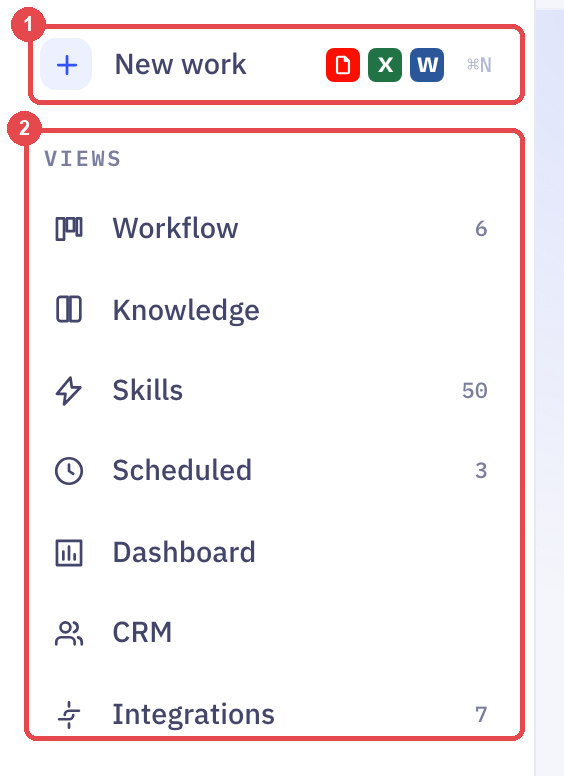
New work starts a fresh workflow. Everything else in the rail is somewhere to look at work that already exists.
Views are six ways into the same workspace, not six separate products:
| View | What it holds |
|---|---|
| Workflow | Every SOP you have built, running or not |
| Knowledge | What your agent knows about your business |
| Skills | The library it can draw on — built-in, your team's, and community |
| Scheduled | Anything set to run on a clock rather than on a trigger |
| Dashboard | Report boards you asked for in plain words |
| CRM | The people your workflows have talked to |
| Integrations | The systems you have connected |
Projects are folders. The credit meter at the bottom is what you have spent against your plan.
Say the workflow out loud
The box in the middle is the whole product. You describe what should happen, in the words you would use to explain it to a new hire — not in triggers and conditions.

The composer cycles through four worked examples — e-commerce, bookings, agency and finance — so you can see the shape of a good one before writing your own. The e-commerce one reads:
Customer orders on Shopify — confirm and send tracking via WhatsApp, and only ship once Stripe captures payment. Orders over $1,000, ask me first.
Two things in that sentence are what make the result usable rather than a demo.
It names real systems — Shopify, WhatsApp, Stripe — instead of describing them. And its last clause sets a limit: over $1,000, a person decides.
What comes back
You get an SOP, not a black box. Five steps you can read, in order, each naming the system it touches. Every one of them is editable — if step 2 should send the tracking link an hour later rather than immediately, you change step 2.
The steps are the workflow. There is no separate "real" configuration underneath the diagram that you would have to learn later — editing a step edits what runs.
The approval gate is the important part
"Orders over $1,000, ask me first" became a gate: the workflow runs by itself right up to that step, then stops and waits for you.
This is the difference between automation you can leave running and automation you have to watch. Anything you would not let a new hire do unsupervised, say so in the sentence, and it becomes a place the workflow pauses.
Set the first gate lower than feels necessary. It is far easier to raise a threshold after a fortnight of watching what actually comes through it than to explain a wrong order that went out at 2am.
Reading what your workflows are doing
Each project in the rail carries a status, and there are only three.
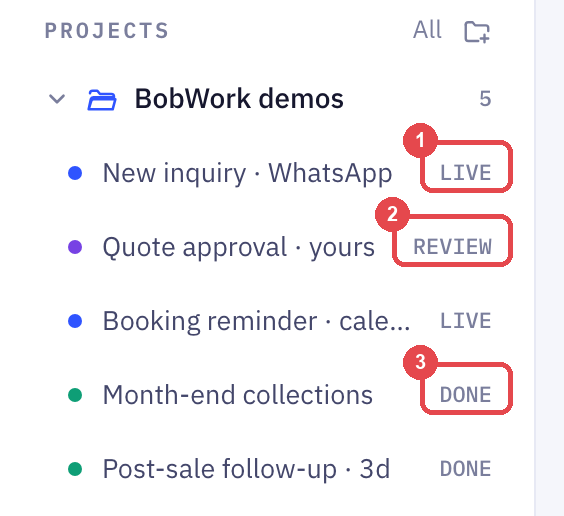
REVIEW is the one to watch. It means a workflow hit a gate and a customer is, in practice, waiting on you. LIVE needs nothing from you. DONE has finished this run.
A workflow sitting in REVIEW is not paused for convenience — it stopped mid-conversation. Clear these before the end of the day, or make the gate looser.
Start from a template instead
Under the composer are Templates and Recent. If your workflow resembles a common one — a booking reminder, a quote approval, month-end collections — open the template and change the parts that differ. It is a faster route to something working than an empty box, and every template is the same editable five-step SOP.
Quick start guide walks through connecting a channel and going live once you have a workflow you like.
Frequently Asked Questions
What happened to the old bobwork.ai homepage?
It moved to bobwork.ai/landing and is still the page we point at from articles and campaigns. The root is now the workspace, because the product explains itself faster than a page describing it.
Do I need to sign in to look around?
No. You can open the workspace and read it. Signing in is what lets you claim a workflow you have built, so you can edit and run it.
Which language does the workspace open in?
English everywhere, except Hong Kong, which gets Cantonese. The language picker in the top right changes it.
What does a workflow cost to run?
Runs draw on credits, and the meter at the bottom of the rail shows what you have used against your plan. See Billing and usage for what is included and what happens past it.
Can I change a workflow after it is live?
Yes, and it takes effect on the next run. Editing a step edits what runs — there is nothing to redeploy.
Up next
Quick Start Guide
Get Bob live and replying to customers in under 10 minutes. Five steps, in order.
Still need help?
Our team is available Mon–Fri, 10 AM–6 PM MYT (GMT+8).